
ShapeComponents
Geometric shapes are useful in many game scenarios: debug visualizations, procedurally generated
graphics, UI elements, or simple game objects that don’t need sprite art. Flame’s shape components
let you render polygons, rectangles, and circles as first-class components with all the transform
properties of PositionComponent. They also serve as the foundation for the
collision detection hitboxes.
A ShapeComponent is the base class for representing a scalable geometrical shape. The shapes have
different ways of defining how they look, but they all have a size and angle that can be modified
and the shape definition will scale or rotate the shape accordingly.
These shapes are meant as a tool for using geometrical shapes in a more general way than together with the collision detection system, where you want to use the ShapeHitboxes.
PolygonComponent
A PolygonComponent is created by giving it a list of points in the constructor, called vertices.
This list will be transformed into a polygon with a size, which can still be scaled and rotated.
For example, this would create a square going from (50, 50) to (100, 100), with its center in (75, 75):
void main() {
  PolygonComponent([
    Vector2(100, 100),
    Vector2(100, 50),
    Vector2(50, 50),
    Vector2(50, 100),
  ]);
}
A PolygonComponent can also be created with a list of relative vertices, which are points defined
in relation to the given size, most often the size of the intended parent.
For example you could create a diamond-shaped polygon like this:
void main() {
  PolygonComponent.relative(
    [
      Vector2(0.0, -1.0), // Middle of top wall
      Vector2(1.0, 0.0), // Middle of right wall
      Vector2(0.0, 1.0), // Middle of bottom wall
      Vector2(-1.0, 0.0), // Middle of left wall
    ],
    size: Vector2.all(100),
  );
}
The vertices in the example define percentages of the length from the center to the edge of the
screen in both x and y axis, so for our first item in our list (Vector2(0.0, -1.0)) we are
pointing on the middle of the top wall of the bounding box, since the coordinate system here is
defined from
the center of the polygon.
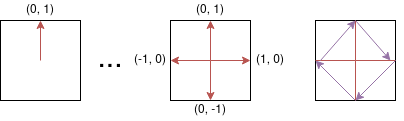
In the image you can see how the polygon shape formed by the purple arrows is defined by the red arrows.
From a Path
When the outline of a shape already exists as a Path, for example one that was converted from a
vector graphic, the PolygonComponent.fromPath constructor follows that outline with straight edges
instead of you having to list the vertices by hand. The corners between the straight lines of the
path become vertices as they are, and the curves are approximated.
The following would create a rounded rectangle with a size of (100, 60), centered in (200, 100):
void main() {
  final path = Path()
    ..addRRect(
      RRect.fromRectAndRadius(
        const Rect.fromLTWH(0, 0, 100, 60),
        const Radius.circular(20),
      ),
    );

  PolygonComponent.fromPath(
    path,
    position: Vector2(200, 100),
    anchor: Anchor.center,
  );
}
The component gets the size of the contour, so that curves which reach the bounds of the path are
not cut short. If no position is given the polygon ends up where the contour is in the coordinates
of the path.
There are three arguments that control how the path is followed:
contour: A path has one contour for each shape that was added to it, and for eachmoveTo. This is the index of the one that the polygon is made from, and it defaults to the first one. An index that the path does not have results in aRangeError.sampling: The step that curves are followed with, in the units of the path, which defaults to1.0. A higher value gives fewer vertices, which makes collision detection and ray casting cheaper, and a lower value follows the curves more closely. A path that is defined in small units, like meters, needs a sampling that is small compared to its size. Straight stretches cost the same whatever the sampling is.tolerance: How far the polygon may stray from the path, in the units of the path. The samples that are not needed to stay within it are left out. It defaults to half of thesampling.
The constructor is built on the walkContours, walkContourAt and walkContour extension methods
on Path and PathMetric, which take the same sampling and tolerance and return the vertices
as lists of Offsets.
void main() {
  final path = Path()
    ..addOval(const Rect.fromLTWH(0, 0, 100, 60))
    ..addRect(const Rect.fromLTWH(200, 0, 50, 50));

  // One list of offsets for each contour in the path.
  final contours = path.walkContours();
  // Only the rectangle, sampled with a step of 2 and simplified with a
  // tolerance of 0.5.
  final rectangle = path.walkContourAt(1, 2, 0.5);
}
PathComponent
When a whole Path is needed instead of a single contour, a PathComponent renders the path as it
is and follows each of its closed contours with a polygon, in the same way as
PolygonComponent.fromPath follows one contour. The polygons decide whether a point is inside of
the component, so taps and drags only count on the shapes of the path and not in the space between
them. The component gets the size of the bounds of the path, and the path is moved so that those
bounds start at the origin of the component, so the anchor and the transforms apply to it like to
any other shape.
Using the previous two-contour Path, a PathComponent that renders and covers both shapes is
created like this:
void main() {
  final path = Path()
    ..addOval(const Rect.fromLTWH(0, 0, 100, 60))
    ..addRect(const Rect.fromLTWH(200, 0, 50, 50));

  final component = PathComponent(path: path);
}
The sampling and tolerance arguments control how the contours are followed, see
From a Path. The vertices of each polygon are available in polygons.
Contours with fewer than three vertices, like open lines, are rendered but do not become polygons.
By default, the polygons whose vertices all lie inside of the largest polygon are left out as well,
since the largest one already covers them; the eyes of a face are an example of this. Pass
filter: false to keep every polygon, for example when the inner contours should be hit by rays.
The PathHitbox is the hitbox counterpart of the PathComponent, see
PathHitbox.
RectangleComponent
A RectangleComponent is created very similarly to how a PositionComponent is created, since it
also has a bounding rectangle.
Something like this for example:
void main() {
  RectangleComponent(
    position: Vector2(10.0, 15.0),
    size: Vector2.all(10),
    angle: pi/2,
    anchor: Anchor.center,
  );
}
Dart also already has an excellent way to create rectangles and that class is called Rect, you
can create a Flame RectangleComponent from a Rect by using the
RectangleComponent.fromRect factory, and just like when setting the vertices of the
PolygonComponent, your rectangle will be sized
according to the Rect if you use this constructor.
The following would create a RectangleComponent with its top left corner in (10, 10) and a size
of (100, 50).
void main() {
  RectangleComponent.fromRect(
    Rect.fromLTWH(10, 10, 100, 50),
  );
}
You can also create a RectangleComponent by defining a relation to the intended parent’s size,
you can use the default constructor to build your rectangle from a position, size and angle. The
relation is a vector defined in relation to the parent size, for example a relation that is
Vector2(0.5, 0.8) would create a rectangle that is 50% of the width of the parent’s size and
80% of its height.
In the example below a RectangleComponent of size (25.0, 30.0) positioned at (100, 100) would
be created.
void main() {
  RectangleComponent.relative(
    Vector2(0.5, 1.0),
    position: Vector2.all(100),
    size: Vector2(50, 30),
  );
}
Since a square is a simplified version of a rectangle, there is also a constructor for creating a
square RectangleComponent, the only difference is that the size argument is a double instead
of a Vector2.
void main() {
  RectangleComponent.square(
    position: Vector2.all(100),
    size: 200,
  );
}
CircleComponent
If you know your circle’s position and/or how long the radius is going to be from the start
you can use the optional arguments radius and position to set those.
The following would create a CircleComponent with its center in (100, 100) with a radius of 5,
and therefore a size of Vector2(10, 10).
void main() {
  CircleComponent(radius: 5, position: Vector2.all(100), anchor: Anchor.center);
}
When creating a CircleComponent with the relative constructor you can define how long the
radius is in comparison to the shortest edge of the bounding box defined by size.
The following example would result in a CircleComponent that defines a circle with a radius of 40
(a diameter of 80).
void main() {
  CircleComponent.relative(0.8, size: Vector2.all(100));
}